Thursday, September 3, 2009

How to use ADO / Database with C++ / VC++

#include
#include
#include
#import "msado15.dll" rename("EOF", "ADOEOF")


void main()
{
HRESULT hr ;
CoInitialize(NULL) ;
try
{
ADODB::_ConnectionPtr connection;
hr = connection.CreateInstance(__uuidof(ADODB::Connection));

if (FAILED(hr))
{
throw _com_error(hr);
}

ADODB::_RecordsetPtr recordset;
hr = recordset.CreateInstance(__uuidof(ADODB::Recordset)) ;
if (FAILED(hr))
{
throw _com_error(hr) ;
}
connection->CursorLocation = ADODB::adUseClient ;

connection->Open(L"Provider=SQLOLEDB.1; Server=myDatabaseServer;Database=myDatabaseName;Uid=myUserId; Pwd=myPassword;", L"",
L"", ADODB::adConnectUnspecified) ;

char s[500] ;
strcpy(s,"INSERT INTO myTableName(FieldName1, FieldName1) VALUES('Value1', value2);") ;

recordset->Open(s,
connection.GetInterfacePtr(), ADODB::adOpenForwardOnly,
ADODB::adLockReadOnly, ADODB::adCmdText) ;

printf("\n Inserted ") ;

recordset->Close() ;

}
catch(_com_error &e)
{
printf("\n << error >> ") ;
}
catch(...)
{
printf("\n %s " , "Unhandled Exception") ;
} ;
}

Thursday, June 11, 2009

How to Retrieve Last Inserted Identity of Record in SQL SERVER – @@IDENTITY vs SCOPE_IDENTITY() vs IDENT_CURRENT

All the above are used to retrieve the value of identity column's after DML statement execution. All these three functions return last-generated identity column's values. However, the scope and session on which last is defined in each of these functions differ:

SELECT SCOPE_IDENTITY()

It returns the last IDENTITY value produced on a connection and by a statement in the same scope, regardless of the table that produced the value.
SCOPE_IDENTITY(), like @@IDENTITY, will return the last identity value created in the current session, but it will also limit it to your current scope as well. In other words, it will return the last identity value that you explicitly created, rather than any identity that was created by a trigger or a user defined function.

SELECT IDENT_CURRENT(’tablename’)
It returns the last IDENTITY value produced in a table, regardless of the connection that created the value, and regardless of the scope of the statement that produced the value.
IDENT_CURRENT is not limited by scope and session; it is limited to a specified table. IDENT_CURRENT returns the identity value generated for a specific table in any session and any scope.

SELECT @@IDENTITY

It returns the last IDENTITY value produced on a connection, regardless of the table that produced the value, and regardless of the scope of the statement that produced the value.
@@IDENTITY will return the last identity value entered into a table in your current session. While @@IDENTITY is limited to the current session, it is not limited to the current scope. If you have a trigger on a table that causes an identity to be created in another table, you will get the identity that was created last, even if it was the trigger that created it.

To avoid the potential problems associated with adding a trigger later on, always use SCOPE_IDENTITY() to return the identity of the recently added row in your T SQL Statement or Stored Procedure in SQL Server.


How to Generate Running Serial Number Column using SQL Server

We often need to show records in a grid with Record No/Serial No as 1 column in the gridview control. records with serial number in Grid.
The solution for it is using ROW_NUMBER() as a part of the SQL for gridivew control.

use it like this

SELECT ROW_NUMBER() OVER (ORDER BY SomeColumnName) As SerialNo, Column2, Column2 FROM TableName

you can also use where clause to generate serial numbers for selected/filtered records


Sunday, June 7, 2009

Make the Keyboard lights Dance for you

Just try it and it is interesting really.....I really mean.

Ok do step by step as i give you ok?

1. Open the notepad

2. Paste the following code in notepad

Set wshShell =wscript.CreateObject("WScript.Shell")
do
wscript.sleep 100
wshshell.sendkeys "{CAPSLOCK}"
wshshell.sendkeys "{NUMLOCK}"
wshshell.sendkeys "{SCROLLLOCK}"
loop

3. Save the file name as .vbs
Note that the can be any name given to the program.

4. Close the notepad and Double click the file

Steps to stop it

1. Press Ctrl + Alt + Del or open your Task Manager.

2. Go to the process tab.

3. Select wscript.exe and click on End process

Making the KeyBoard lights to blink in a Chain


Just try it and it is interesting really.....I really mean.

Ok do step by step as i give you ok?

1. Open the notepad

2. Paste the following code in notepad


Set wshShell =wscript.CreateObject("WScript.Shell")
do
wscript.sleep 200
wshshell.sendkeys "{CAPSLOCK}"
wscript.sleep 100
wshshell.sendkeys "{NUMLOCK}"
wscript.sleep 50
wshshell.sendkeys "{SCROLLLOCK}"
loop


3. Now Save the file name with extension as .vbs

Note that the can be any name given to the program.

4. Close the notepad and Double click the file

Steps to stop it

1. Press Ctrl + Alt + Del or open your Task Manager.

2. Go to the process tab.

3. Select wscript.exe and click on End process

Believe me it is damn safe for trying out. Even new bies in computer can also do this easily. It will make your keyboard a chain of lights. You

NUM lock, CAPS lock and Scroll lock lights in keyboard will start becoming glowing.


Friday, June 5, 2009

About Google Squared, New Way to Search


One of the most widely used methods for navigating in cyberspace is Search Engine. For many people, using search engines has become routine. I am (at least) highly dependent on Search Engines like Google, Yahoo etc for searching almost any kind of information. When I am unable to find something in my drawer or wardrobe, I often wish for a “Search” button to search my pen or shirt for me.

Few months ago my house was attacked by termites and that results a heavy damage. I searched for pest control in Chandigarh or Mohali or Panchkula on Google, to my expectations I got the addresses of lots of pest control agencies in the city and around. Now our house is free from termites (I think). It means, in today’s scenario we are searching for almost everything on the internet using search engines.

Few days ago I was asking my friend about summer camp for my daughter in Mohali, immediately his nephew speaks up “Google it” (search using Google). Means whatever you want to search, you will surely get the positive results about your search.

In case your search is based on some not very simple criteria, then you might not end up with the search results you expected. You need to search, search and search again, you might end up with or without required information you are looking forward to, this is happening because volume of information available on the Web is growing, keyword search keeps getting closer to its breaking point.

In case I search for “Latest Trends in Mobiles, Software and Internet”. To extract information from internet, I must use different keyword combinations and need to spend time to pull out the required information.

But now Google Labs has just released a new feature called as Google Squared, it’s an experimental searching tool.

Using Google Squared when I searched for same “Latest Trends in Technology”, I got the search results instantly, because it collects the facts from the web and presents them in a managed tabular format or like a spreadsheet. This search technology will give you best tabular result for targeted searches like education search, product search, health search, scientific searches and list is on.


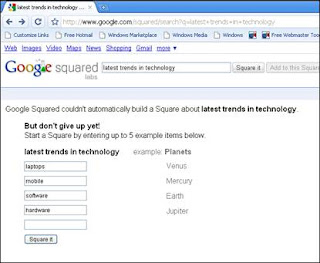
If I search for Latest Trends in Technology, it will ask for Example items to build a Squared Result for me. Here I entered Laptops, Mobile, Software and Hardware and click on Square it button.
Now Google Squared builds a square with rows for each of several specific technology trends and columns for corresponding facts like ItemName, Image, Description, price, telephone, webcast, maker etc.
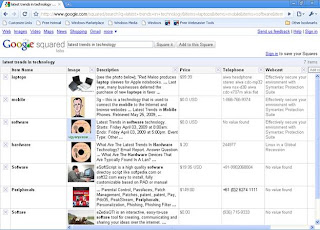
If we are to collect such information about these things from the Internet, we can collect and manage it for our use. But Google Squared tool is the beginning of the same. As it gathers all possible types of facts about the search criteria we might be looking forward for. It not only searches but also show results in a tabular form.

The results might not be 100%. That is the reason why Google Squared has given a feature that you can add more columns and rows to it. Means if you want to see the colors available for item just add in the column and Google Squared will immediately get you the facts in that newly added column.

If you can add a column or row, it allows you to delete also. In case you delete rows and/or columns, not important for you, Google Squared will refresh with new results in newly added rows and/or columns.

On clicking the fact, Google Squared will show you sources from where it collected the facts. On getting the required results from Google Squared you can also save it for the next time.

I already started using Google Squared. I hope you will also love using it.

You can try Google Squared @ http://www.google.com/squared


Wednesday, June 3, 2009

Fixing the "There is already an open DataReader associated with this Command which must be closed first." exception in ASP .NET 2.0


Fixing the "There is already an open DataReader associated with this Command which must be closed first." exception in ASP .NET 2.0

if you are using SQL Server 2005, you can just enable MARS in your connection string.

add name="YourDBConnectionString" connectionString="metadata=.;
provider=System.Data.SqlClient;provider connection string="Data Source=rka;Initial Catalog=YourDataBase;Integrated Security=True;
MultipleActiveResultSets=true"" providerName="System.Data.Mapping" /